
START WITH YOUR QUESTION
How to Make a Gas Station Dance Video From 3 Photos
Choose three photos, assign all four shots and check the returning selfie. See a real FunClip example, output limits and one-time generation costs.
To make a Gas Station Dance video on FunClip, put three adult photos into the opening dancer, selfie and car performer slots. The fixed template makes an approximately 15-second, 768P vertical MP4. Its sequence has four shots but three roles: dancer → selfie → car performer → the same selfie person again. You do not need a fourth photo, a dance recording or a written prompt.
Open the Gas Station Dance generator
Choose the three people before uploading
Each slot identifies a person; it is not a clip on an editing timeline. Photo 1 supplies the opening dancer. Photo 2 supplies the person holding the selfie camera, including the closing appearance. Photo 3 supplies the performer at the car. Keep those assignments written down if you are collecting photos from friends. Upload order matters more than the order in which the photos were taken.
Use one consenting adult per photo. A group picture is easier to use after cropping each person separately, provided the original faces are large enough to remain clear. Avoid sunglasses, heavy beauty filters and hands covering the face. A plain indoor background is fine: you do not need to photograph anyone at a fuel station.
For the opening dancer, show the outfit and shoes if possible. For the selfie person, prioritize a sharp face, visible hair and the upper outfit. For the car performer, a clear silhouette helps when the person turns near the door. Full-body framing gives the dancing roles more clothing information, but it cannot guarantee that every detail survives movement.
Follow the complete four-shot order
| Appearance | Photo to use | What to inspect in the result |
|---|---|---|
| Opening dance | Photo 1 | Face, outfit, feet and hands during movement |
| First selfie | Photo 2 | Face and hair as the camera turns |
| Car-side performance | Photo 3 | Identity, clothing and contact with the door |
| Returning selfie | Photo 2 again | The same person and outfit as the first selfie |
Three people do not mean three shots. The returning selfie is part of FunClip's reference sequence, so watch through to the end. The template guides all four appearances within the same short video; it does not provide four separate effects to select. Exact shot lengths, gestures and camera framing can vary.
See the original photos and the actual result
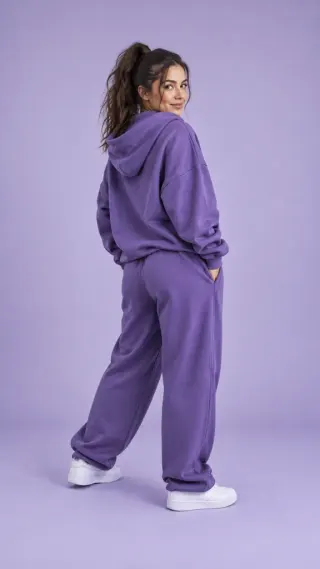
These are the three fictional adult images used in an existing FunClip test, shown in upload order. They are public demonstration assets, not customer photos.


Actual FunClip test result, approximately 15 seconds. This earlier test used an external motion reference. The current template uses a FunClip-generated reference. This is a generated result, not the external reference footage; framing, faces and audio can vary.
Compare the teal outfit in the opening, the lilac sweatshirt in both selfies and the purple outfit near the car. Then inspect the faces and the car interaction rather than judging only the first frame. The four playable excerpts let you revisit each appearance. This example shows one accepted result, not a promise that your photos will produce the same motion or likeness.
Generate and download your version
Open the generator and select the photos in the three labelled slots. Supported formats are JPG, PNG, WebP and HEIC/HEIF, subject to the uploader's size and image limits. If a phone photo will not load, export it as a JPEG and try that file. Review the faces and slot assignments before continuing.
Sign in with the account you want to keep the video in, confirm permission to use the photos, and check the selected pack or your available standard credits. Gas Station uses a fixed reference: there is no custom prompt, scene, duration, resolution or soundtrack selector. If you need a different shot order or want to direct each scene, use the prompt and CapCut workflow instead.
Submit once and let the task finish. Closing the page does not cancel a submitted generation. If it still says processing, return to the same account and check the existing task before starting another. Once complete, play the whole video with sound, then download the MP4. Share the saved file; private account result links are not public viewing links.
What the paid pack covers
One Gas Station generation costs 100 standard credits for the complete video using all three photos, not 100 credits per person or shot. The tool offers one-time packs of $9.90 for 100 credits, $18.90 for 200, or $44.90 for 500 USD. That covers 1, 2 or 5 Gas Station generations if you spend the credits only here. Pack names count videos, not participants.
Credits are shared across FunClip tools, valid for 365 days, and do not renew automatically. Other tools can have different credit costs. Gas Station has no free personalized preview in this flow; watching the public example is free. A separate preview balance from another tool cannot pay for this full video.
The paid output is approximately 15 seconds at 768P in a portrait MP4. The public test file measures 768 × 1344 pixels, so treat “768P” as the output tier, not a promise of a 1080 × 1920 file. You can crop or trim the downloaded result in an editor.
Technical failures restore the credits charged for the failed task. That is different from a cash refund. A successfully generated video with an unwanted gesture or face detail still counts as a completed generation; making another version uses new credits. See the refund policy before purchasing.
Check the sound and the ending before sharing
The example contains audio, but FunClip does not guarantee the original trend song, unchanged reference sound, silence or exact lip-sync. There is no audio upload or on/off control in this template. Listen first. If you want different music, mute or replace the audio in an editor using a track you have permission to use.
For a wrong person in a shot, check the original slot assignments. For a face that changes between the first and last selfie, try a clearer photo 2 on a future attempt. For missing or distorted movement, review the whole clip before deciding whether to remake it. The fixed template has no per-shot repair button. You can trim a usable portion, or use a manual workflow when precise editing control matters more than a single generation step.