START WITH YOUR QUESTION
Make a Birthday Rap Video from Photos
Create a birthday rap video from one or two adult photos. Follow the scene and video steps, check costs and use the birthday preset in the embedded generator.
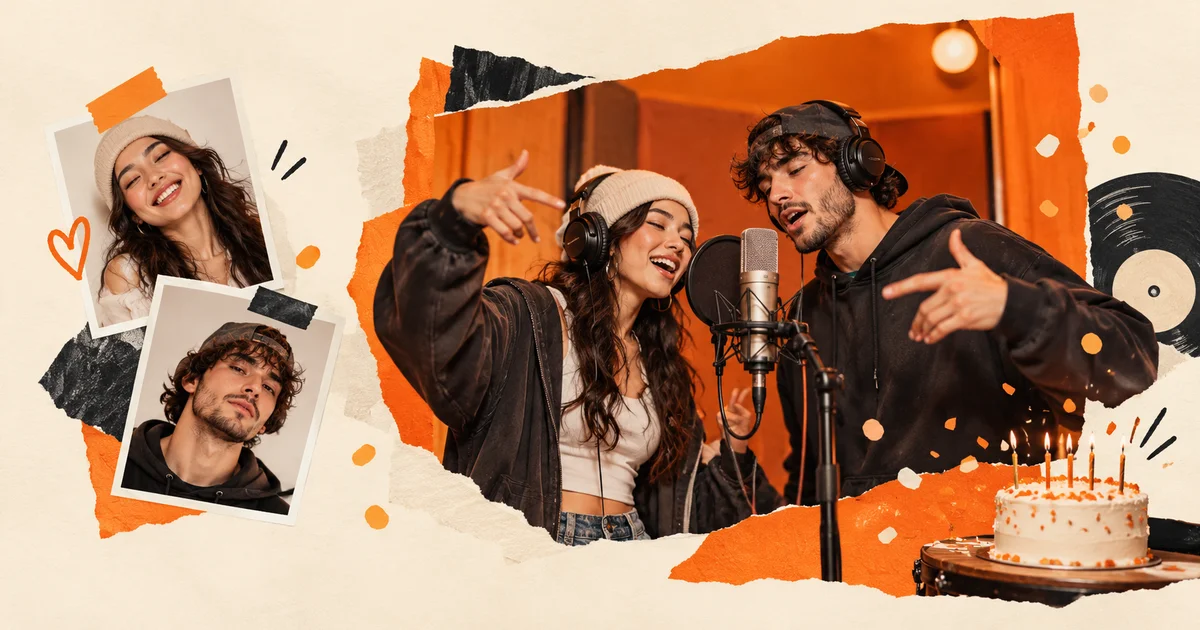
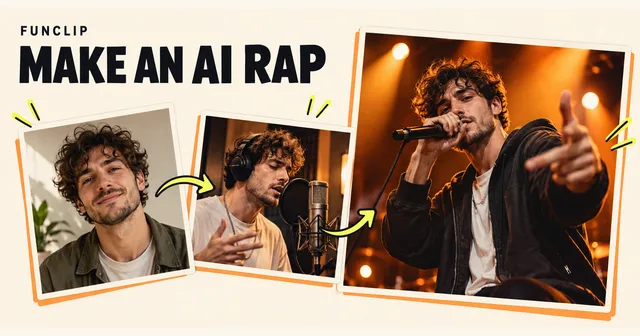
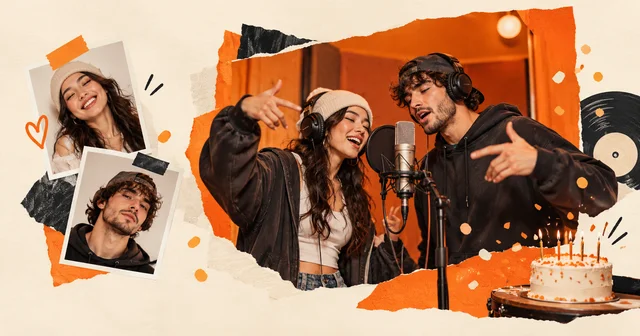
A birthday rap video on FunClip is a 10-second clip made from one or two adult portraits, with a birthday-themed verse and generated audio. Use Solo to put one person in the spotlight, or Duo for a greeting from two friends. The generator below starts with the birthday theme for a new draft. You review a scene before turning it into video. Completing both steps once uses 100 credits; packs start at $9.90 with no subscription.
Choose who appears in the birthday video
For a solo performance, upload one photo of the adult who will appear. That can be the person celebrating or the friend sending the greeting. For a duo, prepare two separate portraits, one for each performer. Both people need to agree to the use of their photos. FunClip's photo tools are intended for adults.
You do not need to take a new photo together. Two individual portraits are easier to check than a crowded party picture. Look for visible eyes and mouth, even light and a clear face. Avoid sunglasses, heavy filters and another person's face at the edge of the frame. The photo selection guide explains how to compare possible inputs.
Use JPG, PNG or WebP, or select a supported HEIC/HEIF photo for local conversion. Each image must be under 10 MB and no more than 40 megapixels. Check the converted preview before continuing. File size alone does not tell you whether the face is sharp enough.
Set the birthday theme and review the scene
Choose Solo or Duo, then choose Studio, Street or Stage. Studio gives the performance a recording-booth setting. Street uses an outdoor setting, while Stage suggests a small concert. These are preset scenes; they do not let you place individual props or select exact camera movements.
Select Birthday in the theme control. A returning session may show an earlier draft so that your saved work is preserved. If it is still editable, use Use the birthday theme above the controls, or select Birthday yourself. A pending or completed task stays attached to its original settings.
Generate the scene for 10 standard credits. Check each person's face, the number of performers, their positions and the framing. The scene is the starting image for the video. It is a paid generation, not a free preview. If the scene is unsuitable, decide whether to make another before spending the 90 credits needed to animate it.
Know what the birthday verse can say
The birthday preset gives the clip a general celebratory theme. It is useful for a short greeting in a group chat or a moment during a birthday gathering. It does not provide a custom lyrics editor, a name field or an audio upload. Do not buy it expecting the performers to recite a specific person's name, age or a paragraph you have written.
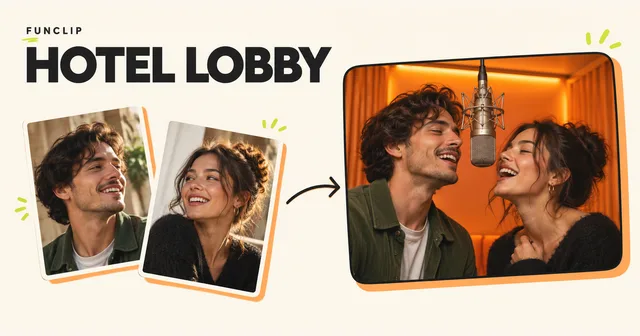
For a short custom English theme in a fixed orange booth, consider the Hotel Lobby rap duet. That is a different workflow using two portraits and direct video generation. Its theme can guide the original rap, but exact words and pronunciation can still vary. It does not include the original Hotel Lobby song.
If an exact written birthday message matters, add it as a caption when you share the finished file. Keep the text separate from the claim about what the generated voices actually say. You can also add text in your own video editor after downloading.
Generate and check the complete clip
Animate the approved scene for 90 standard credits. The result is a 10-second, 1080p, vertical 9:16 MP4 with generated original audio. It is a short performance, not a full birthday song or a recording in the person's real voice.
Watch the full clip with sound before sending it. Listen for unexpected words, unclear pronunciation or a tone that does not fit the recipient. For a duo, check both faces as they move and take turns. A convincing still image does not guarantee that every moving frame will preserve the same likeness.
The tool does not offer word-by-word audio corrections or repairs to individual frames. A new generated version uses more credits. Replacing the sound in another editor is possible, but the new track may no longer match the mouth movements. Leave time to review the result instead of planning the first generation for the moment the birthday party starts.
Budget for the scene and the video
The current shared packs are $9.90 for 100 credits, $18.90 for 200 and $44.90 for 500. Purchased credits are valid for 365 days. There is no subscription, free trial or automatic renewal. The pricing page lists the packs and their terms.
One scene followed by one video uses 100 credits. Extra scene attempts reduce the balance available for animation, so check the cost shown before each step. A completed result that you dislike still consumes credits. A technical failure restores the credits charged for that failed task; this is different from a cash refund. If the scene succeeds and the video fails, only the failed task qualifies for that credit restoration.
Download the greeting and send the file
When the video is ready, download the MP4 while signed in. Send the downloaded file through your messaging or social app. A private result link is not a public greeting link and may require access to your account.
If generation is taking longer than expected, check the existing task or My clips before starting again. Closing the browser does not cancel submitted work. For a walkthrough of both performance modes, read how to make an AI rap video, or return to the solo and duo studio.