START WITH YOUR QUESTION
How to Make an AI Car Driving Video from a Photo
Put one adult portrait into a five-second driving scene. Choose a car and road, add a short optional note, and generate directly in this guide.
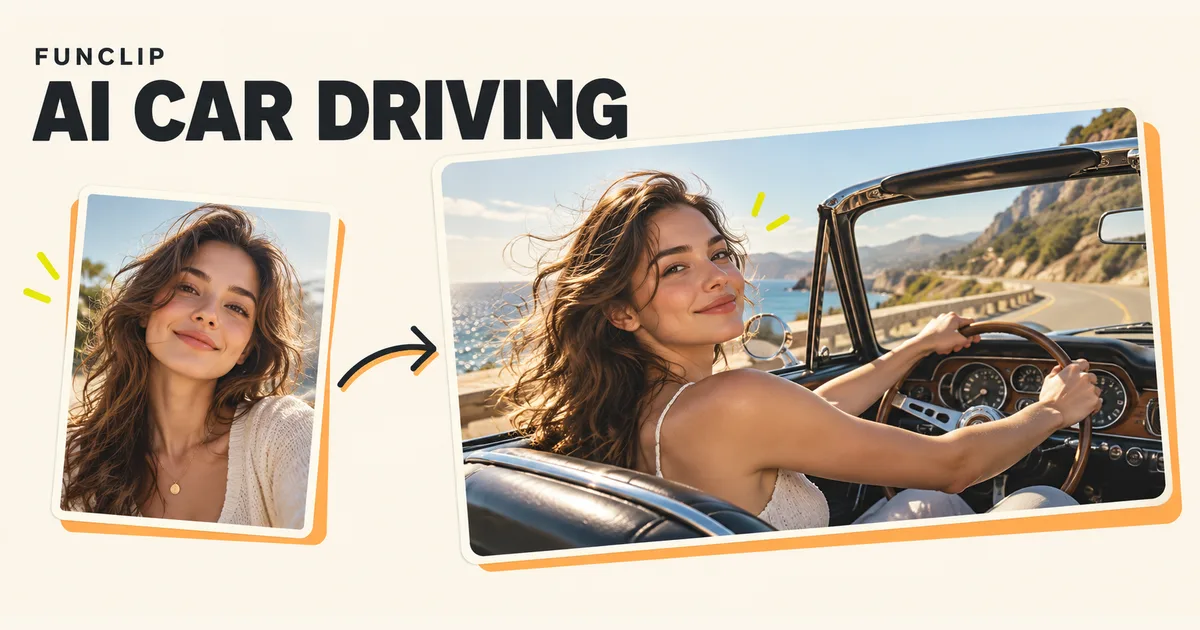
To make an AI car driving video on FunClip, add one adult portrait, choose a vehicle and road, then generate a five-second clip in the editor below. The output uses the 720p tier in 9:16 portrait format. You supply an identity reference, not footage of someone driving.
Choose a useful driver portrait
Pick a photo with one consenting adult, a sharp face and visible eyes. A straight-on or mild three-quarter view gives the model more facial information than a profile hidden by hair or sunglasses. Keep the head and shoulders visible rather than cutting the photo tightly around the eyes and mouth.
You do not need to take the photo inside a car. The tool synthesizes the vehicle and setting. If the source already contains a steering wheel, it does not make that exact car or interior part of the output contract.
A group photo is easiest to use after cropping it to the intended driver. Check that the remaining face still has enough detail. Enlarging a tiny face from the background does not make it a reliable portrait.
Match the vehicle and road to one idea
The vehicle selector offers classic, sports and SUV options. The road selector offers coast, city and country. These are scene directions rather than named vehicle models or exact locations.
A classic car on a coastal road suggests a relaxed trip. A sports car in the city suggests a different mood. Choose one coherent pairing before adding notes. Requesting several cars or switching from coast to city mid-clip asks a five-second generation to do much more than the controls describe.
The generator also accepts an optional short note. Use it to clarify a detail that fits your selected scene, such as “warm late-afternoon light, calm expression, steady camera.” Avoid a long list of events, exact brand details or contradictory directions. Notes guide generation; they do not guarantee a particular shot.
Generate from this page
- Select the vehicle and road.
- Add the portrait and check that the preview shows the intended driver.
- Add an optional concise note, or leave it empty.
- Sign in, confirm photo permission and review the credit requirement.
- Submit once, wait for the result, then play and download it.
The current tool does not offer a duration selector, landscape format, car-image upload or route map. The photo slot is for the person. If you need an exact vehicle, a particular real street or a sequence of edited shots, those requirements go beyond this preset.
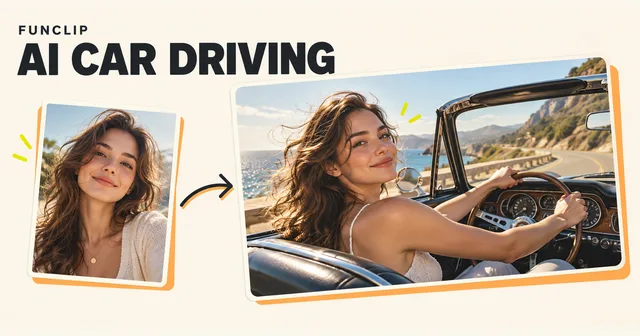
The editorial cover illustrates a possible concept. It is not proof that the generator will recreate that vehicle, coastline or camera angle.
Review the driving details
Check the face during the whole clip, not just the first frame. Watch the hands near the wheel, the relationship between the driver and seat, and the window edges as scenery moves past. Reflections and fast background motion can reveal errors that are hard to see in a still image.
Five seconds is best treated as a single scene. If the first or last moment is awkward, trimming may leave a usable shorter segment. The generator has no timeline for repairing one hand or replacing a specific frame.
The current template does not request generated audio and has no music picker. Treat the visual scene as the main output and inspect the actual file before posting. Add music or sound effects afterward only when you have permission to use them.
When a different input may help
If the driver barely resembles the reference, inspect the input for blur, harsh shadow, sunglasses or an extreme angle. A clearer portrait can provide better evidence, but likeness in a generated moving scene is not guaranteed.
If a note appears to fight the selected road or vehicle, simplify it before a future attempt. For example, a “quiet country road” note paired with the city option is inconsistent. Changing the note and generating again creates a new paid result; it does not revise an existing video for free.
Credits and task recovery
A complete driving clip costs 100 standard credits. Shared one-time packs are $9.90 for 100, $18.90 for 200 or $44.90 for 500 credits, valid for 365 days. FunClip has no free trial or automatic subscription renewal.
If generation is pending, return with the same account and check My clips before submitting another request. Closing the page does not cancel the task. A technical failure restores the charged credits for that task; this is not an automatic cash refund. A completed clip with unwanted details still uses credits.
Download the MP4 while signed in. Share the file rather than a private account URL. For a performance-focused clip from the same portrait, compare the AI Dance guide.