START WITH YOUR QUESTION
How to Make a Bigfoot AI Video with a Prompt
Create a short Bigfoot scene with optional photo guidance. Use the embedded generator, choose a format and write a focused prompt for one clear moment.
You can make a Bigfoot AI video on FunClip without uploading a photo. Select a preset, choose 5 or 10 seconds and an aspect ratio, then describe one short scene in the optional notes. You may add one reference photo if it is useful. The generator below produces a short MP4 at the 1080p tier.
Start with one filmable moment
A short scene is easier to describe clearly than an entire adventure. Decide who is in the frame, what happens and how the camera sees it. For example:
Bigfoot pauses on a forest trail, looks toward the camera and gives a small wave. Steady medium shot, soft morning light.
This is an example direction, not a tested promise of output quality. It contains one character, one action and one camera idea. A request that starts in a forest, moves to a city and ends with a concert asks for several separate scenes in a few seconds.
You can also leave notes empty and use the preset as the starting point. Notes are optional; this is not a form that requires you to write a long prompt before you can proceed.
Choose whether a photo adds useful information
The photo input is optional. A prompt-only Bigfoot scene does not require you to upload a person just to unlock the generate button.
If you use a reference, choose an image you have permission to upload and that supports the scene you want. A photo can guide appearance or composition, but it does not guarantee exact reproduction or a literal transformation of every detail. Avoid assuming that a reference makes the output an exact animation of the source.
For a person-centred performance with a required portrait, use the AI Dance tool. Bigfoot is useful when the creature and scene are the main idea.
Set duration, framing and audio
The current controls include two presets, 5 or 10 seconds, and portrait 9:16, landscape 16:9 or square 1:1. Choose portrait for a standing character with vertical space, or landscape when the surroundings matter. Do not rely on a later crop to preserve a character placed at the very edge of the frame.
Five seconds fits a brief look, wave or reveal. Ten seconds allows a longer moment, but does not guarantee that complex movements will stay consistent. Keep the requested action understandable at the selected length.
The audio checkbox asks for generated audio. It is not a song library or a way to upload a licensed recording. If you want a particular track, plan to add permitted audio after downloading. Exact spoken wording, voice and synchronization are not guaranteed.
Generate in this guide
- Choose the preset, duration, ratio and audio setting.
- Add an optional reference photo, or leave the photo slot empty.
- Write a concise optional scene note.
- Sign in, confirm the required permissions and review the credit balance.
- Submit once, wait for the result, then play and download it.
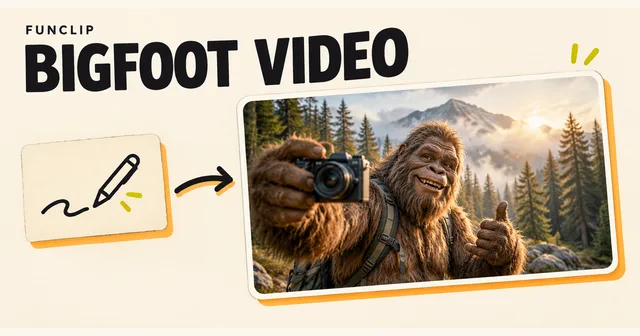
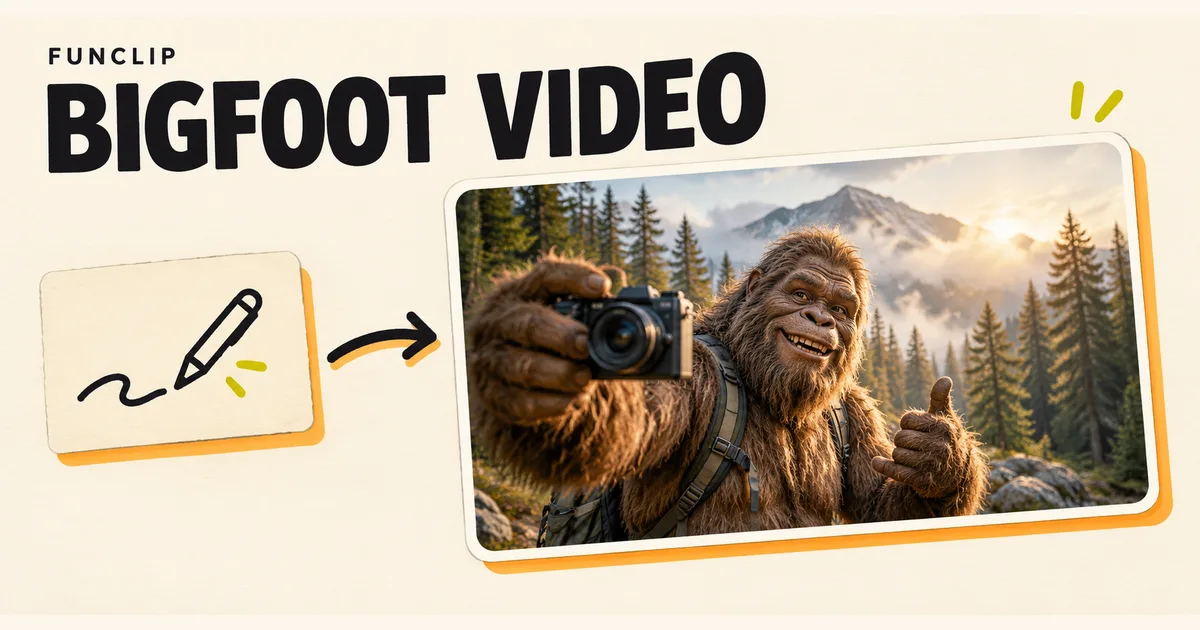
The cover is an AI editorial illustration of the concept. It does not demonstrate that the tool generated that exact forest scene. Use the playable example in the editor to assess the video format.
Review the creature and the camera
Watch the outline of the body, hands, feet and fur as the character moves. Check whether background trees shift unnaturally and whether the camera direction matches the scene. If the character holds a camera or another object, inspect the grip and the object's shape.
For a talking scene, listen to the full result. A readable written request does not ensure clear speech. If dialogue is not essential, a visual gesture can communicate the idea without depending on a precise line.
There is no shot-by-shot timeline or individual-frame repair tool here. If you dislike one moment, trimming may leave a usable segment. A different prompt and another generation create a new paid result, not an edit to the existing file.
Simplify a request that does too much
If several actions compete, keep the most important one. Replace “runs, picks up a camera, interviews a camper and jumps into a river” with a single action such as “holds a camera and looks at the viewer.” Avoid contradictory lighting or camera instructions.
A clearer request can reduce ambiguity, but it does not guarantee a particular output. Save the wording you used so you can make one deliberate change on a future attempt instead of changing every setting at once.
Credits, recovery and sharing
A complete Bigfoot video costs 100 standard credits whether or not you add a photo. Shared one-time packs cost $9.90 for 100, $18.90 for 200 or $44.90 for 500 credits, valid for 365 days. There is no free trial or subscription renewal.
If generation is pending or uncertain, check My clips with the same account before submitting another task. Closing the page does not cancel a submitted generation. Technical failure restores the charged credits for that task; this is not an automatic cash refund. A completed result you dislike still uses credits.
Download the MP4 while signed in, then share the saved file. Account-bound result URLs are not public sharing links.