START WITH YOUR QUESTION
Hotel Lobby Trend in Viggle AI: Two-Person Setup
Plan a two-person Hotel Lobby swap in Viggle AI, assign character photos, check free-plan limits and review both identities before downloading.
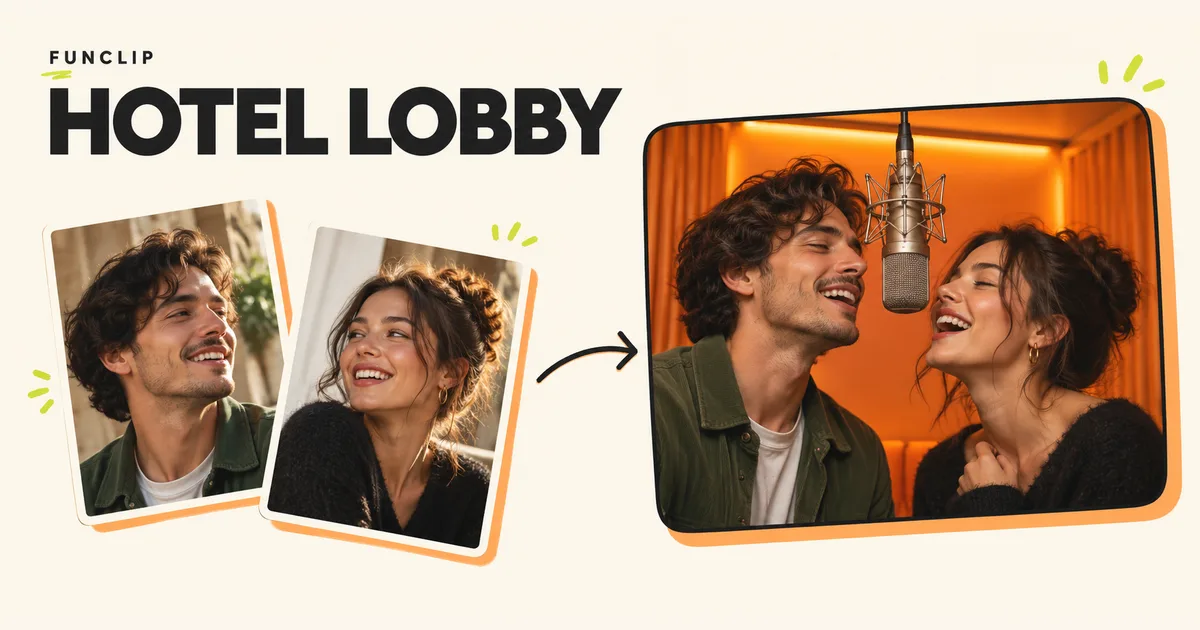
For a Hotel Lobby video in Viggle, use character replacement with a motion clip and assign the two performers separately. Viggle's public body-swap documentation describes a Multi-Track workflow for multiple characters. That is the relevant capability to look for; a single face-swap control may only change one person.
What Viggle supplies
Viggle's body-swap page describes using an image with a video template or uploaded footage, with separate character selection in Multi-Track. Its recommendations favor a clear full-body image. The documentation lists JPG, PNG and WebP inputs.
The Viggle pricing page, checked October 29, 2026, lists five free videos a day, limited multi-character sessions and seven-day storage on the free plan. Watermark removal is a paid-plan feature. Confirm the allowance for the operation you actually select; the free daily count does not mean every model or multi-person session is unrestricted.
These are the published workflow and plan conditions. The checks below help you assess your own result rather than treating a product demonstration as a guarantee of exact movement or likeness.
Prepare the performance reference
Use a clip you have permission to upload. For the orange-room format, both performers should stay visible for the portion you intend to keep. A clip full of cuts, occlusions or people crossing places is harder to review than one stable two-person shot.
You can record your own reference: fix the camera, stand against an orange background with a partner, and perform a short exchange. Keep your hands away from each other's faces. Record with your own audio if you want a finished version without depending on a commercial song.
If you are trying to identify the source performance first, the Hotel Lobby song and original-video guide links the artist recording and COLORS source. Watching that reference does not grant permission to download or republish it.
Work through the two-person setup
- Open the body-swap page and follow its Try Multi-Track entry. Check whether the required session is available on your account before starting.
- Choose an appropriate template or your own permitted motion video. Preview the full segment, not just its thumbnail.
- Identify each performer separately in the multi-character workflow. Match one reference image to each selected person.
- Review the assignment before generating. Keep a small note of which photo belongs to which position if the people move across the frame.
- Generate within the allowance or price shown. Check the existing job's status before launching another attempt.
- Play the result through, then download it while it remains available in your account.
Use the controls currently shown by Viggle. Do not hunt for a “Hotel Lobby” preset that a social tutorial happens to mention if it is absent from your account. The general character-swap workflow and a named trend template are different things.
Check whether both characters survived the swap
Begin with a still moment near the start. Can you recognize both intended people? Then check the fastest head turn, any hand crossing a face, and the final frame. A convincing opening does not tell you what happens during the rest of the clip.
If only one performer changed, inspect the second character's selection and image assignment. If the identities trade places, inspect the moment they overlap or cross. If the costume looks wrong throughout, check whether the reference image makes the intended outfit visible. Repeating the same request without changing the confusing input may spend another allowance without improving the result.
A face close-up can be useful for identity, but it cannot show the clothing and body proportions that a full-character replacement needs. Choose your image for the operation you are using. FunClip's portrait preparation guide covers face clarity; Viggle's body-swap documentation is the source for its own full-body recommendations.
Listen before posting
Do not infer audio support from a moving mouth. Play the downloaded file with sound and check what is actually present. If you add audio afterward, inspect the beginning and end for timing drift. A matching first beat is insufficient if the movements change speed later.
For a zero-cost attempt, accept the current free plan's limits before making the video. If those limits do not suit you, the free-method guide includes a phone-recorded option.
When to choose FunClip instead
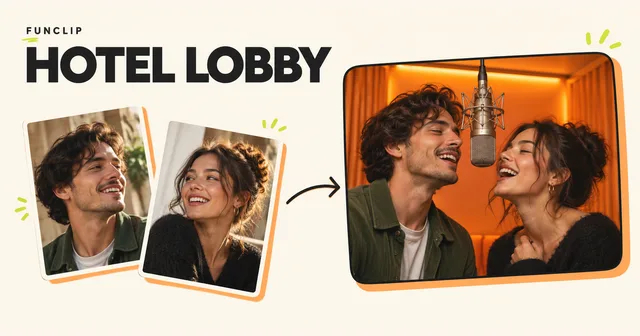
FunClip's Hotel Lobby generator is for a new performance from two adult portraits in a fixed orange studio. It produces a 10-second 768P MP4 and can use a short theme for new English rap. It does not take your motion video, provide the original song or promise an exact recreation. Generation requires paid credits; view the input-and-output examples before buying.